Managing Assets
Managing Assets
Updated March 31, 2026
Overview
Assets can be any device that needs to be tracked - monitors, computers, TVs, tablets and more. While Remmy does not directly update these devices, they can still be managed through Remmy. IT teams can create assets, assign assets to individuals, and report on assets.
Accessing assets
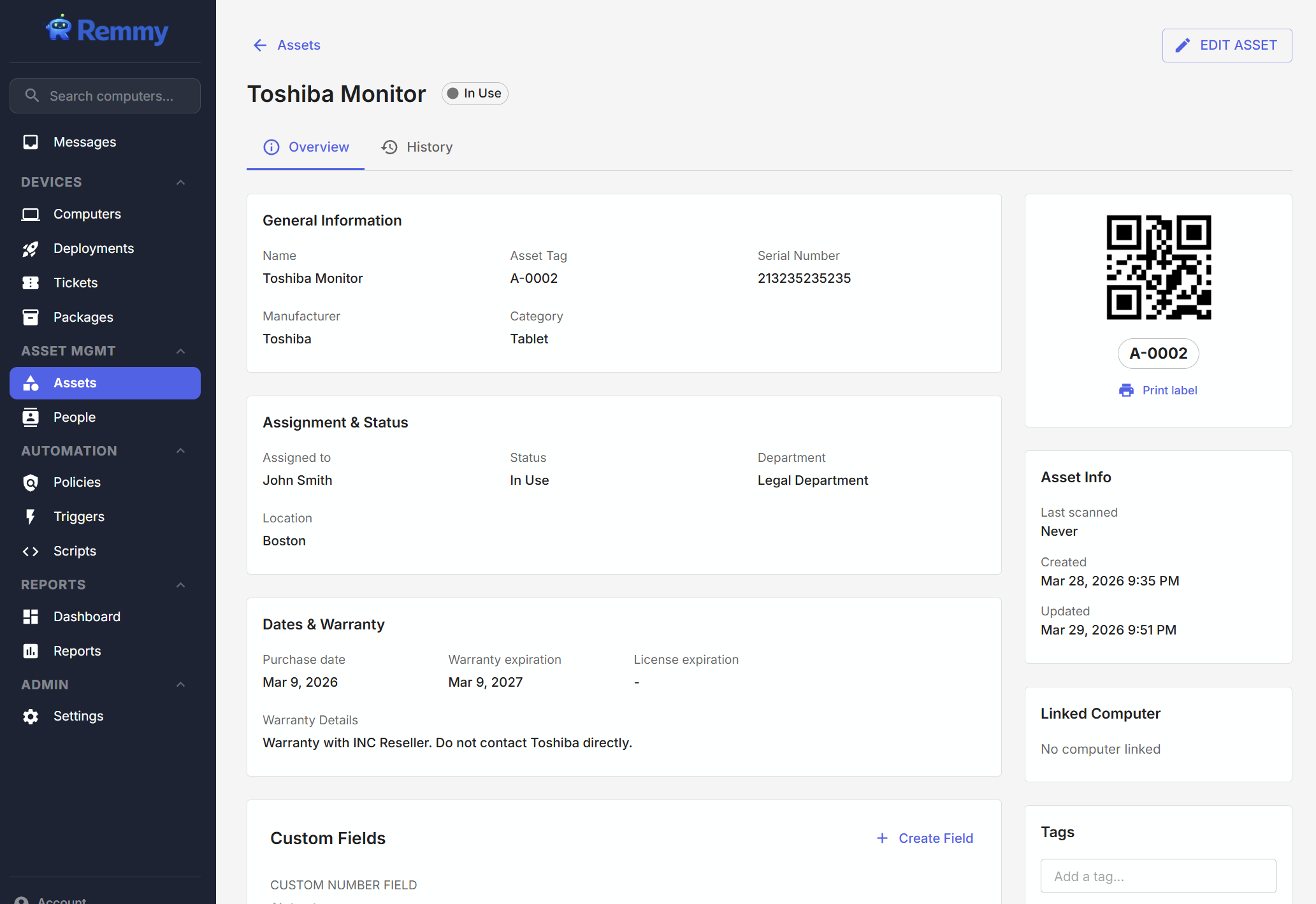
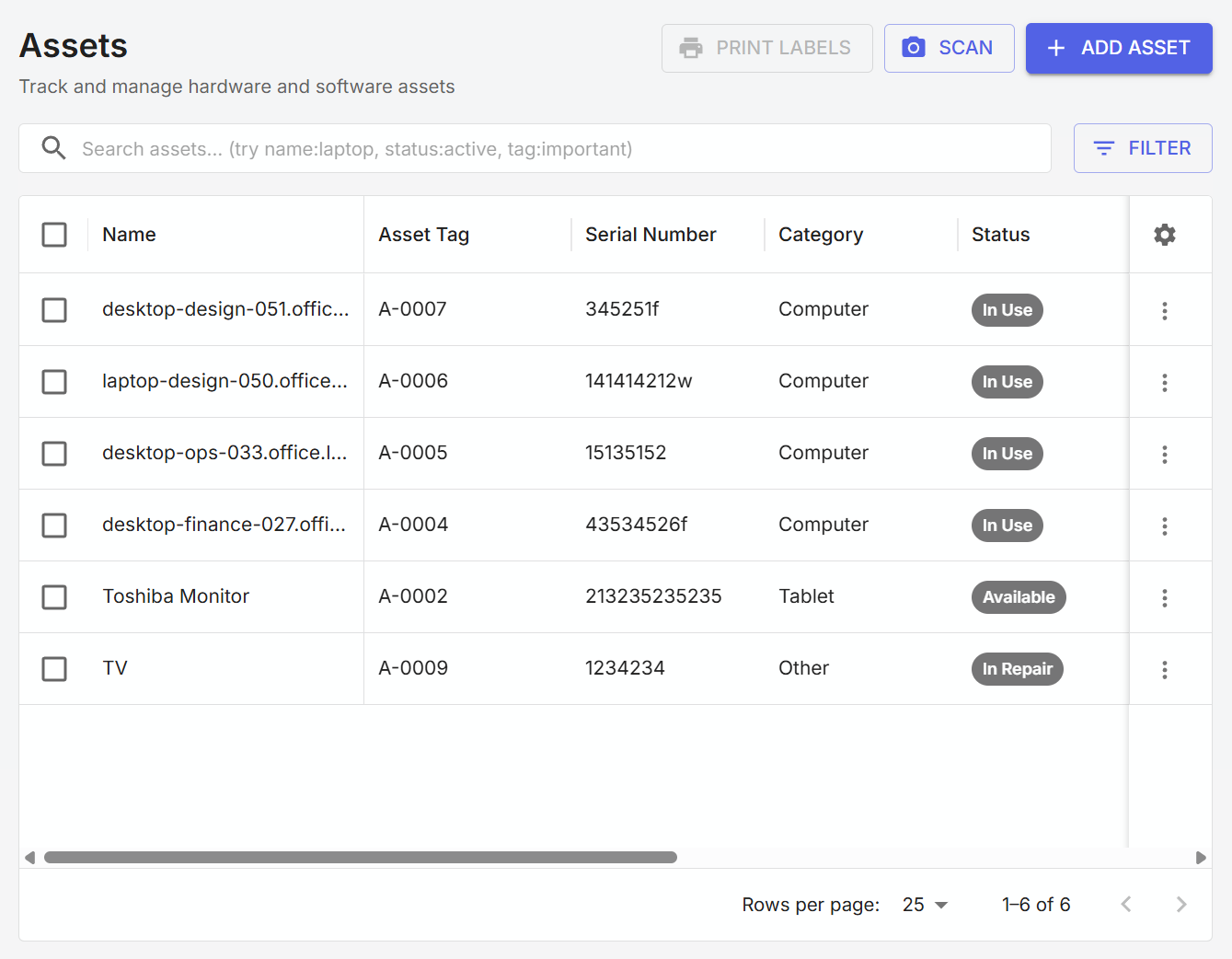
Assets are accessed from the Assets tab. The asset list page shows all assets that are currently managed or have been previously managed by Remmy. Users can perform searches, change displayed columns, and more from the asset list page. To view an asset, a user clicks on the name of the asset from the asset list page.
Creating assets
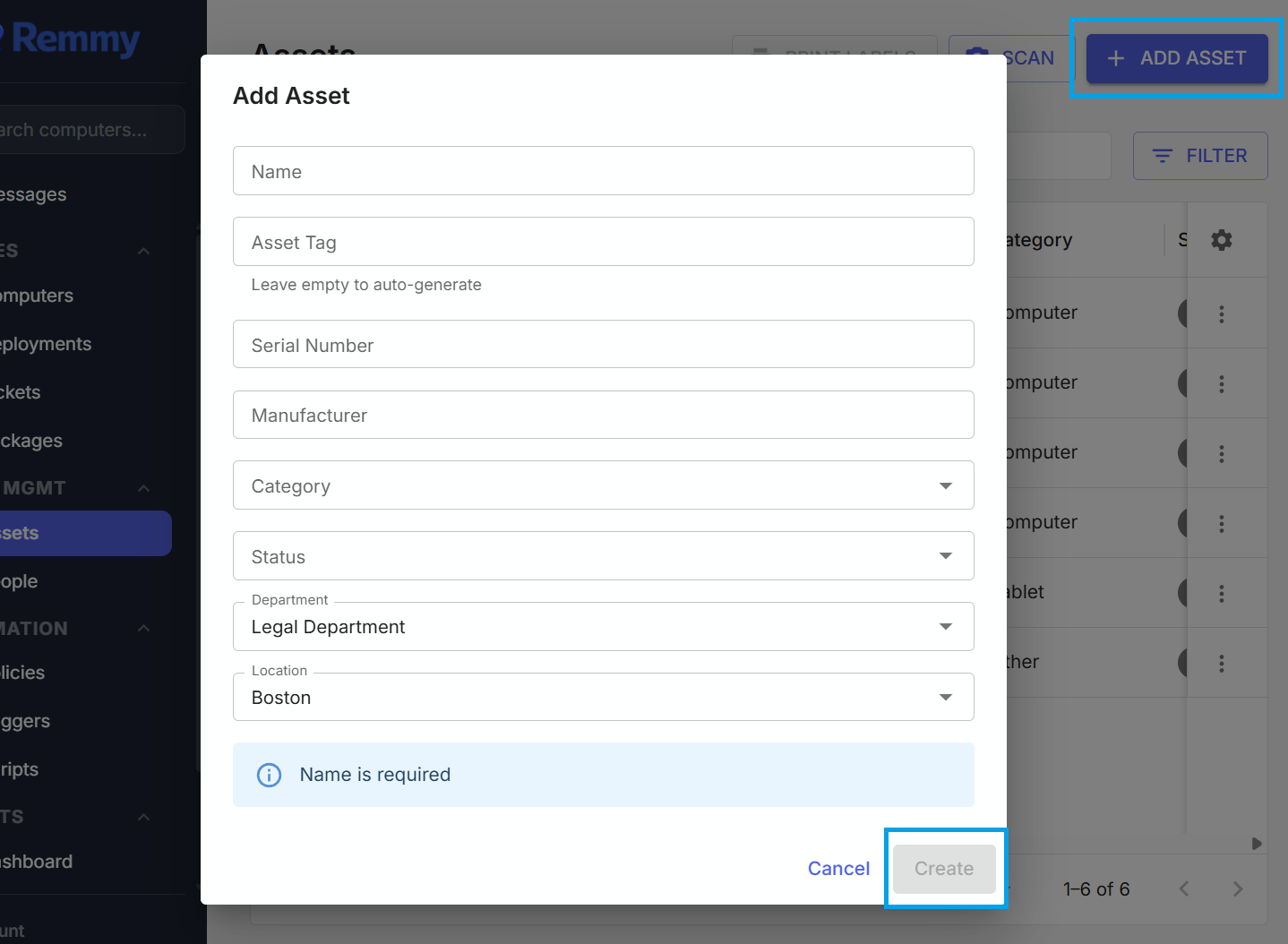
Assets can be created by going to the Asset tab and clicking the "Add Asset" button. From here, a popup is displayed, enabling a user to quickly add an asset to the system. Once an asset has been added, sysadmins can add more information about the asset to Remmy.
Creating assets from computers
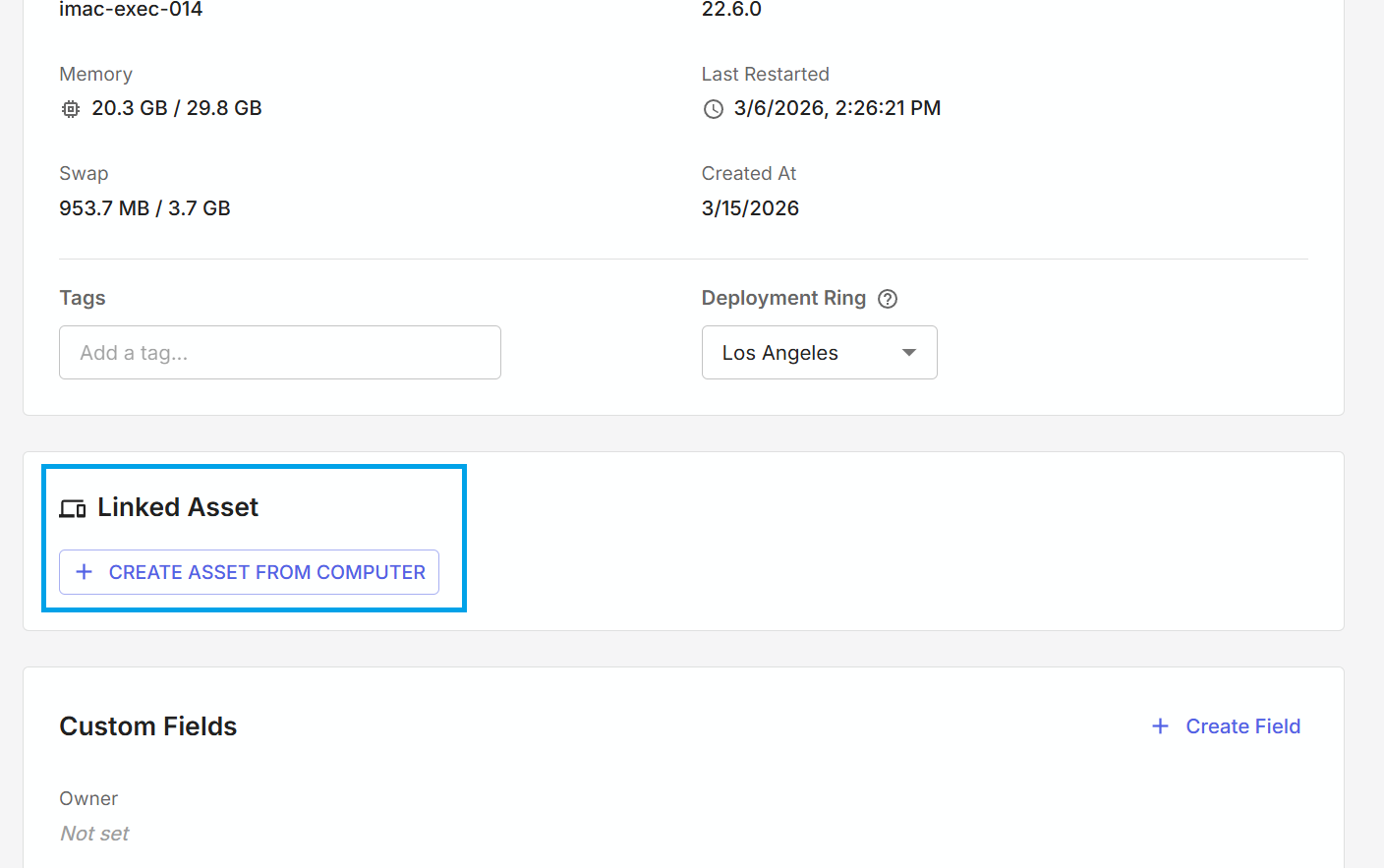
Computers are not automatically assets, but assets can be linked to computers. To do this, a user edits the computer and presses the "Create Asset from computer" button - this will create a linked Asset to the computer managed by Remmy.
Assigning assets to people
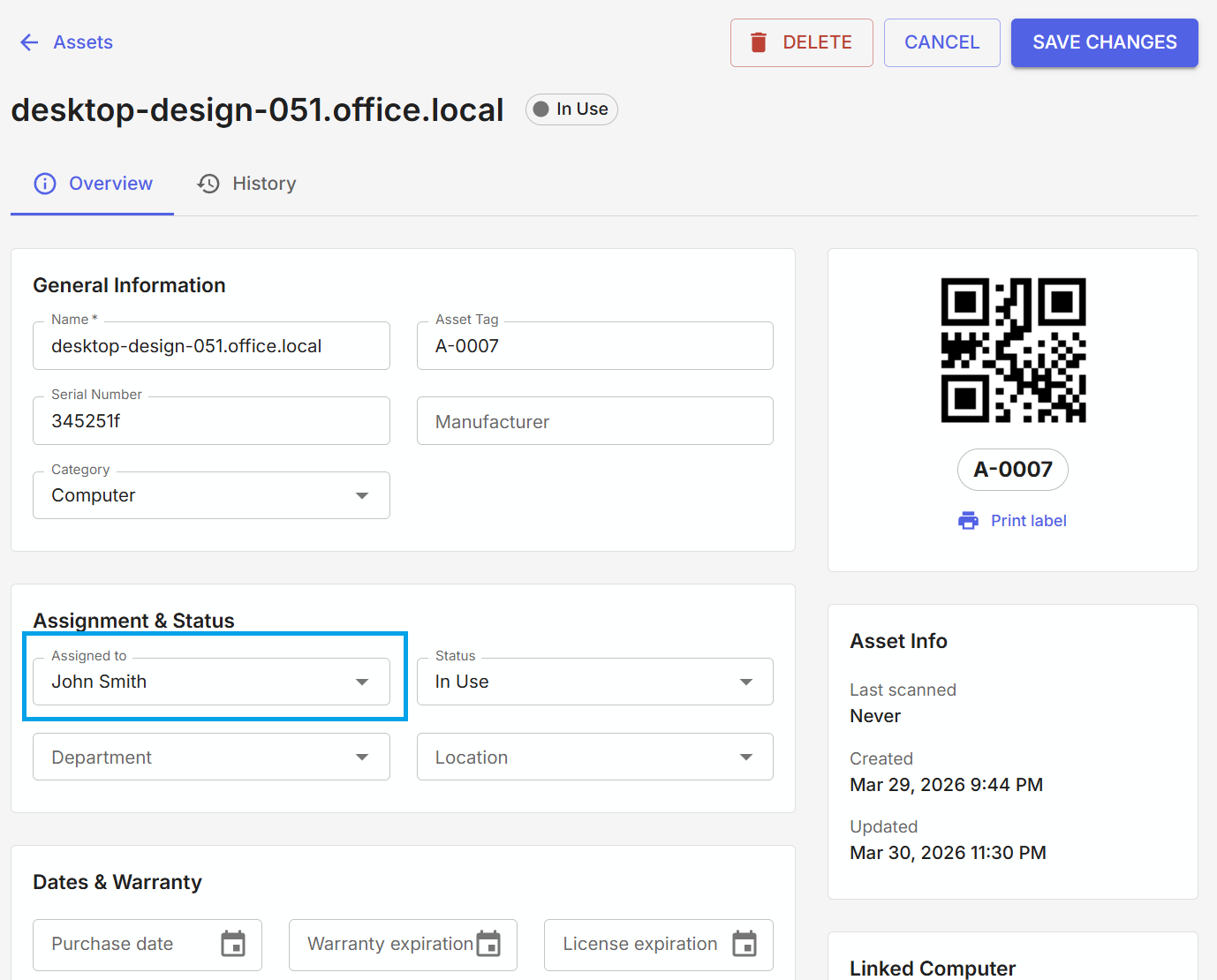
Assets can be assigned to people. This makes tracking who is in possession or responsible for an asset much simpler to track. To assign an asset to a person, edit the asset and select an "Assigned to". An asset can only be assigned to a single person at a time, all asset re-assignments are tracked on the asset history tab.
Updating drop-down values
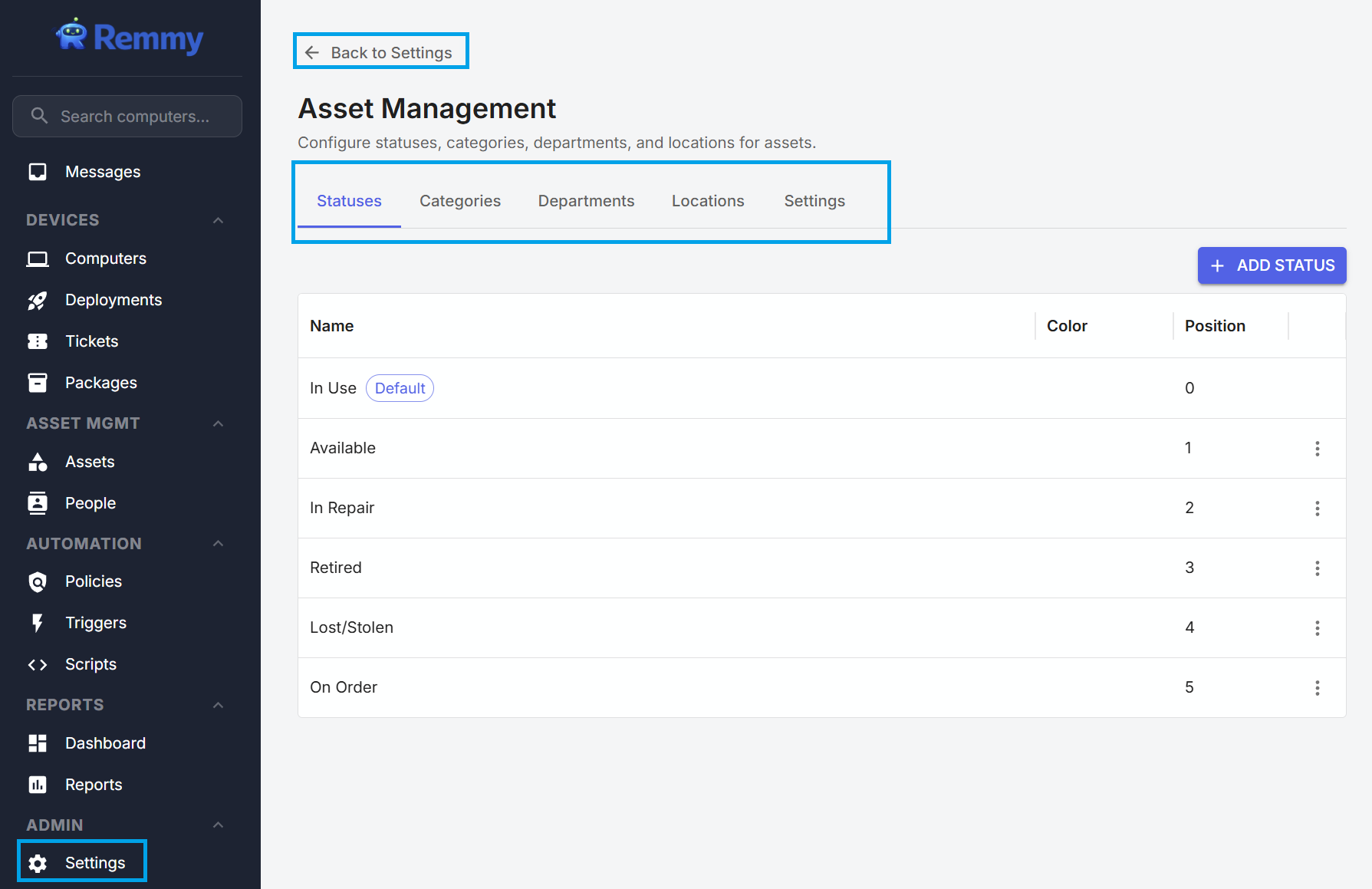
Many of the drop-downs on the asset object can be adjusted by an administrative user. Asset settings can be managed in Settings, under the Asset Management setting category.