
Policies
Policies
Updated March 13, 2026
Overview
Policies help sysadmins define the ideal computer state, track computers when they are non-compliant, and assist in bringing computers into compliance. Policies define what software should be installed on your managed computers and what version it should be running. When a computer doesn't match what a policy requires, it's marked as non-compliant. Policies can optionally auto-install software to bring computers back into compliance automatically.
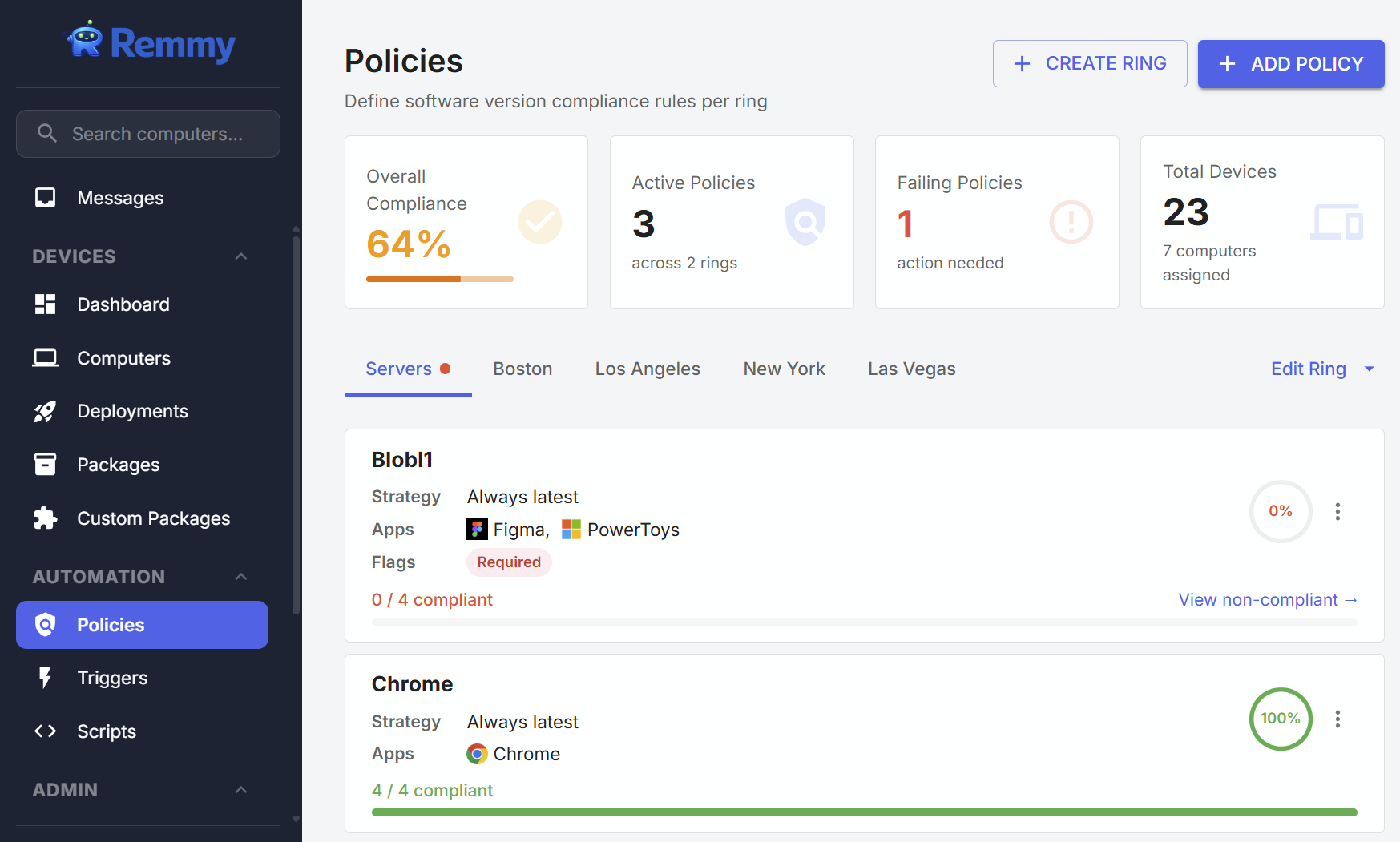
Computer rings
Policies are assigned to Computer Rings - each ring has its own set of policies that a user can configure, and all computers in that ring are evaluated against the policies.
Viewing policies
Policies can be viewed and managed on the Policies page. The policy page contains an overview of overall policy compliance, and enables users to view policies by ring and identify non-compliant computers that need attention.
Policy compliance can also be viewed on individual computers by opening the computer, and clicking on the Policies page.
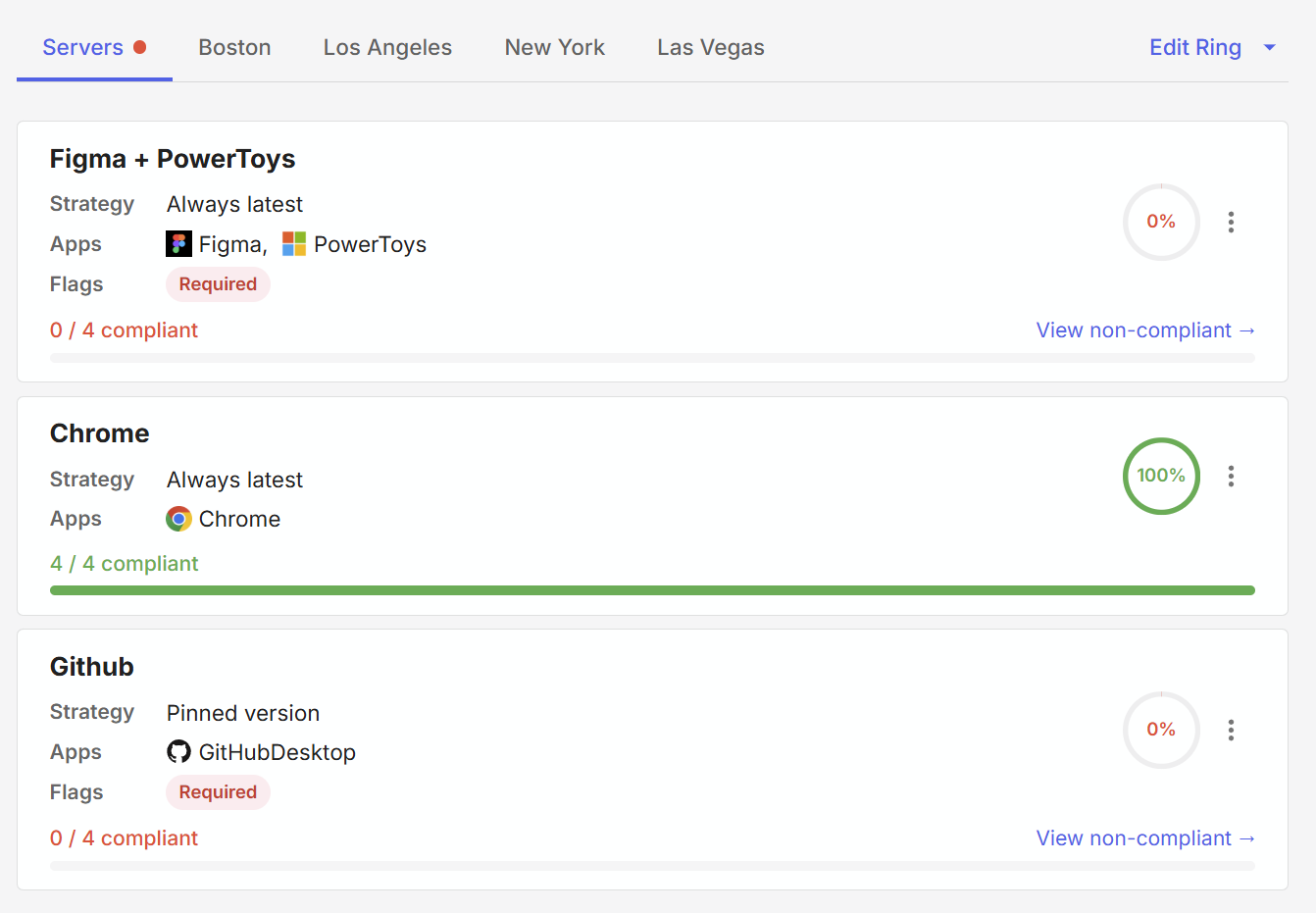
Version strategies
Each policy uses a version strategy that determines what "compliant" means:
| Strategy | Behavior |
|---|---|
| Always latest | The computer must be running the latest known version of each app. Checked against the latest version in the synced package catalog. |
| Latest with delay | The computer must be running a version that's been available for at least N days. Gives you a buffer before new versions are enforced. Requires setting a delay in days. |
| Pinned version | The computer must be running a specific version you choose. Available for Specific Apps policies only. Each app in the policy gets its own pinned version number. |
Creating policies
Policies are created from the Policies page.
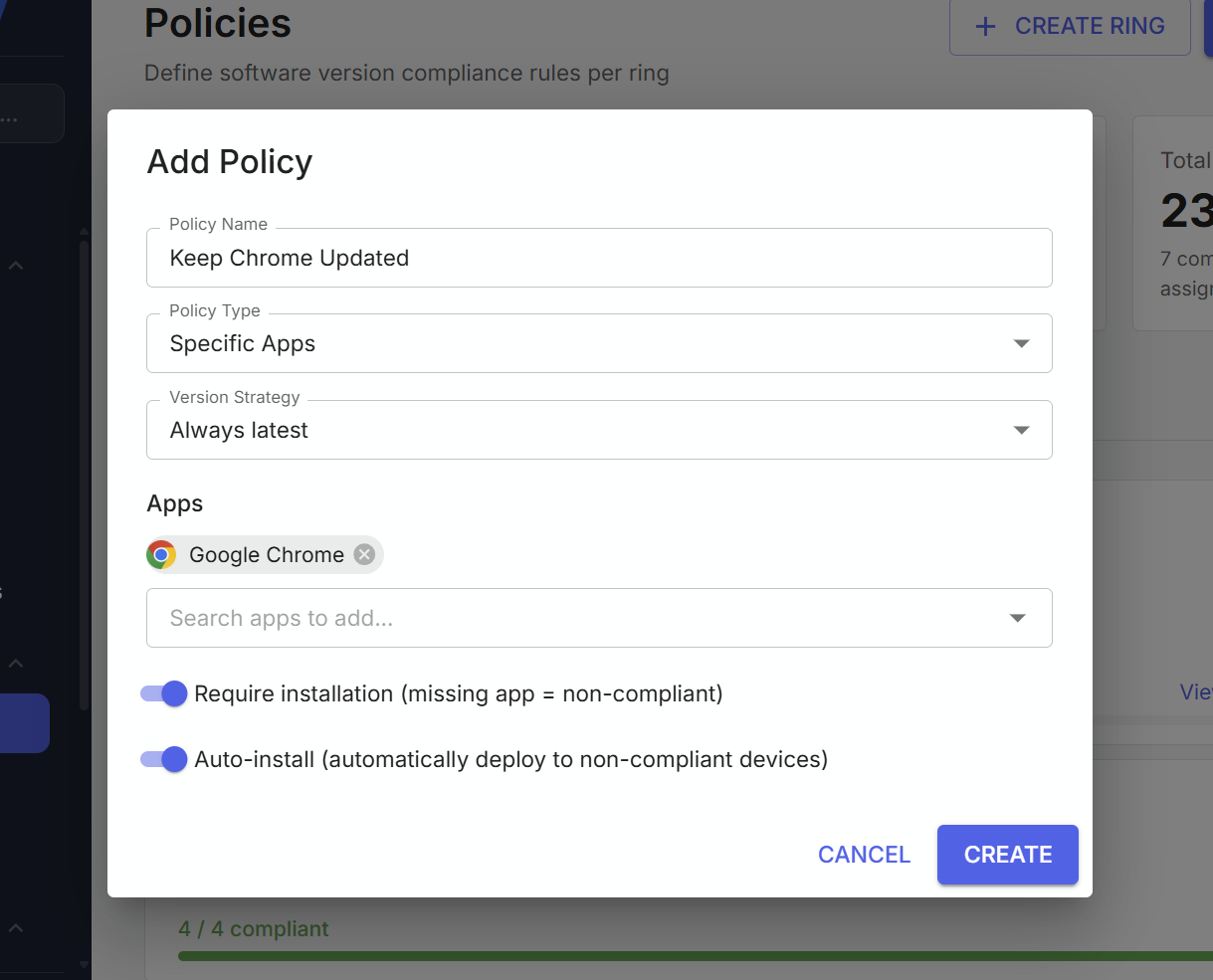
Policy Types
There are two different types of policies.
Specific Apps - Targets specific software packages that you select. For example, you might create a policy for Google Chrome and Mozilla Firefox that keeps them on the latest version. Each ring can have multiple "Specific Apps" policies, but the same app can't appear in more than one policy within the same ring.
Everything Else - Covers all installed software that isn't already managed by a "Specific Apps" policy. This is a catch-all - if a computer has an outdated app and no specific policy covers it, this policy flags it. Only one "Everything Else" policy is allowed per ring.
Require installation
This flag only applies to Specific Apps policies and changes what "non-compliant" means:
Enabled: A computer is non-compliant if the app is missing entirely or if it's installed but outdated. Use this when you want to ensure software is present on every computer in the ring.
Disabled: A computer is only non-compliant if the app is installed but outdated. Computers that don't have the app at all are considered compliant (the policy only manages existing installations). Use this when you don't need the software everywhere, but want to keep it up to date where it exists.
Everything Else policies always use the disabled behavior — they only evaluate software that's already installed.
Auto-install
When auto-install is enabled, the system automatically creates deployments to bring non-compliant computers back into compliance. Here's how it works:
- When you create or update a policy with auto-install enabled, an evaluation runs immediately
- The system also evaluates policies periodically on a schedule
- For each non-compliant computer, a deployment is created to install the correct version
- If require installation is on, computers missing the app will get it installed
To avoid repeatedly targeting the same computer, auto-install skips any computer that already had a deployment from this policy in the last 24 hours. When you manually run a policy, this cooldown is bypassed.
Running a policy manually
Click the three-dot menu on a policy card and select Run. This forces an immediate evaluation and creates deployments for all non-compliant computers, regardless of the 24-hour cooldown. This is useful when:
- You just enabled a policy and want to deploy immediately
- A previous deployment failed and you want to retry
- You want to force a re-evaluation after making changes to computers
- The result shows how many deployments and activities were created
How compliance is determined
Each policy evaluates every computer in its ring:
- For Specific Apps + Always latest: Compares each computer's installed version against the latest version in the package catalog
- For Specific Apps + Pinned: Compares each computer's installed version against the pinned version
- For Everything Else + Always latest: Checks all installed software not covered by other policies, comparing against latest known versions
Duplicate prevention
The system prevents the same app from appearing in multiple policies within the same ring. If you try to add an app that's already covered by another policy, you'll receive an error. This ensures there's no conflicting version requirements for the same software.
Permissions
| Access Level | Capability |
|---|---|
| No Access | Cannot view the Policies page |
| View Only | Can view policies and policy logs |
| Full Access | Can create, edit, delete, and run policies |