
Triggers
Triggers
Updated March 13, 2026
Overview
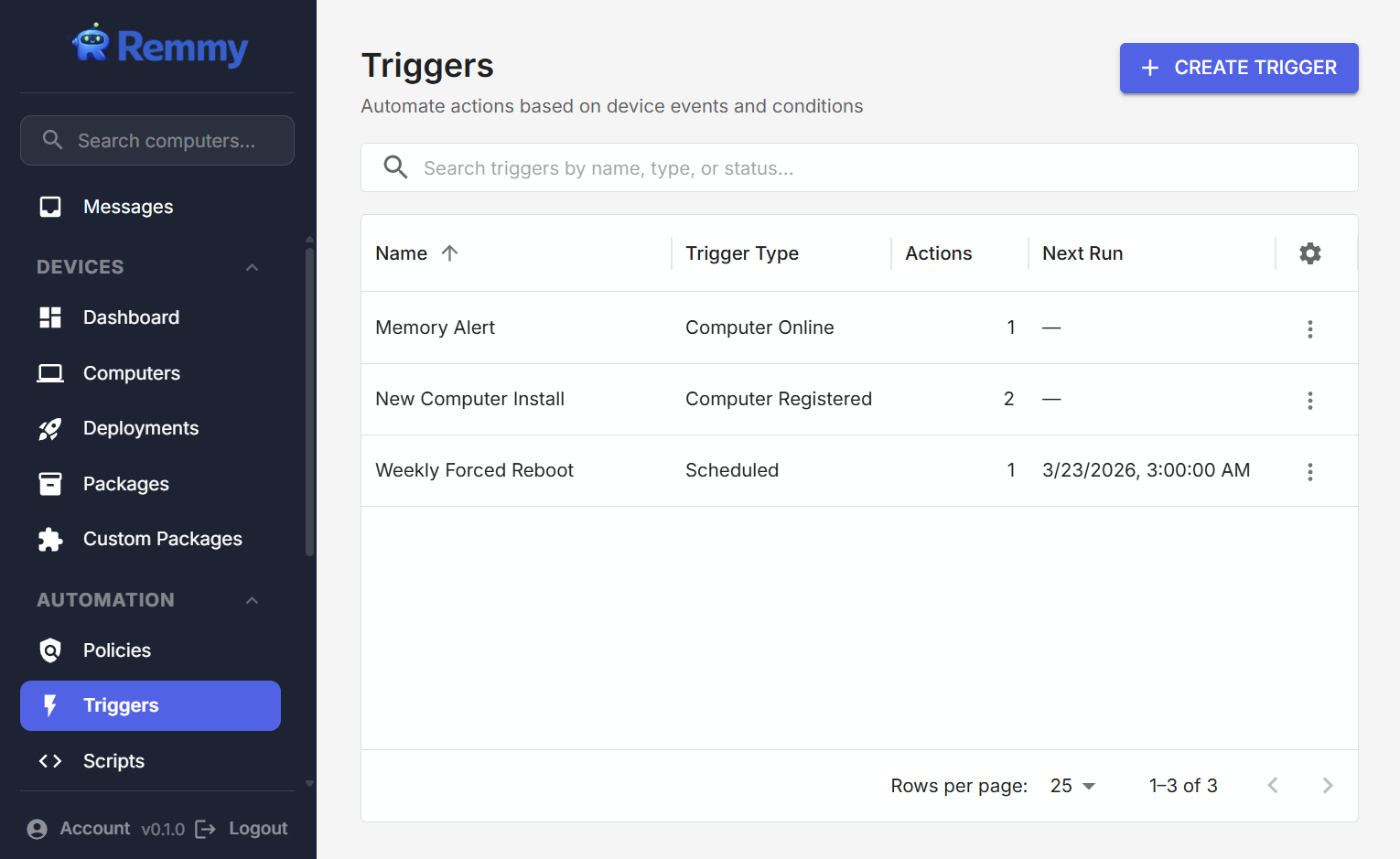
Triggers let sysadmins automate actions in response to events or on a set schedule. When a trigger fires, it can run scripts, install software, set custom fields, create alerts, and more - all without manual intervention.
Creating a trigger
Navigate to Triggers in the sidebar and click New Trigger. The creation wizard has three steps:
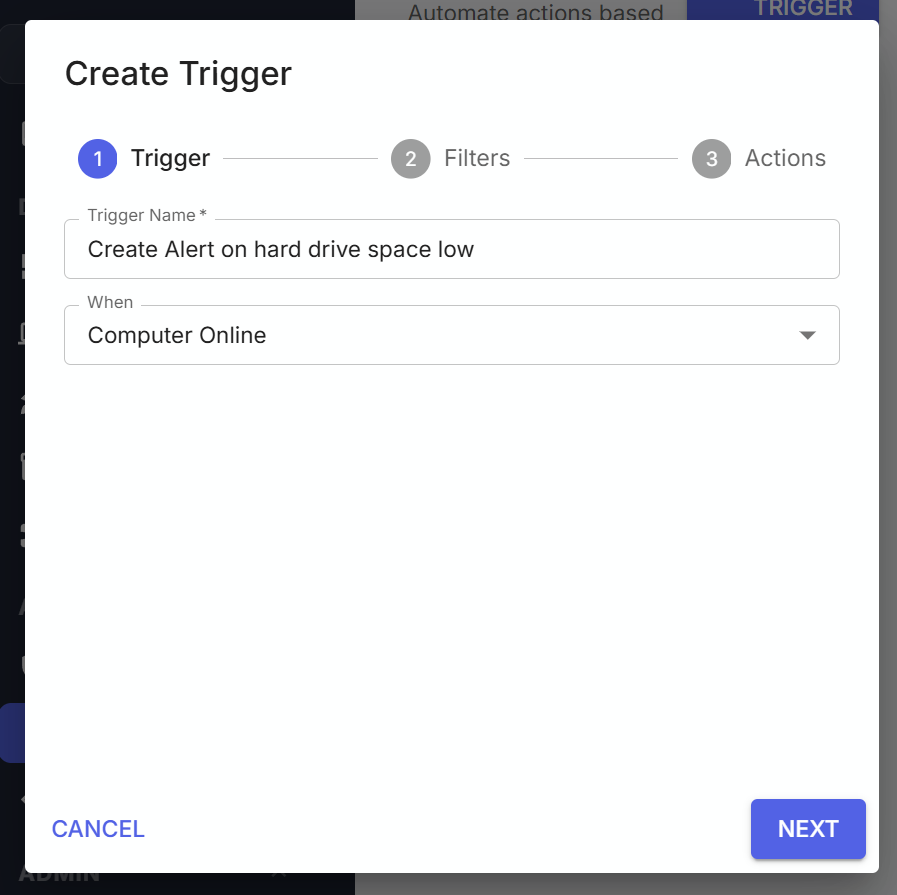
Step 1 - Trigger Initiation & Schedule: Enter a name, select a trigger type, and optionally a schedule for when the trigger should run.
Step 2 - Set Filters: Optionally narrow which computers the trigger applies to. If no filters are set, the trigger applies to all computers. Filters use the same system as computer list filtering - you can filter by tags, rings, OS, custom fields, and more.
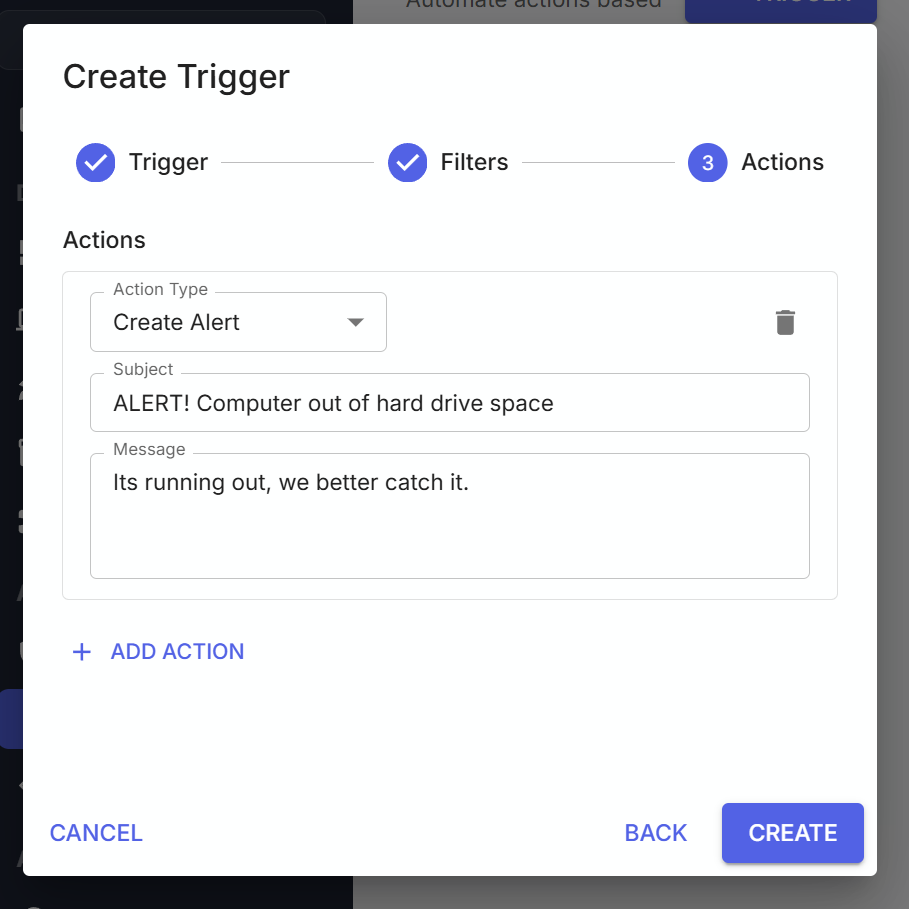
Step 3 - Set Actions: Add one or more actions to execute when the trigger fires. Actions run in the order you define them. At least one action is required in every trigger.
Trigger initiation criteria
There are five different types of trigger initiation criteria:
| Type | Fires When | Example |
|---|---|---|
| Computer Registered | The first time a computer appears in Remmy | There is a set of applications that need to be installed, or certain fields that need to be filled in. |
| Computer Online | A computer's agent connects to the server | Fire an alert or run a clean-up script if the computer comes online and is nearly out of hard drive space |
| Computer Offline | A computer's agent disconnects from the server | If a certain device like a server goes offline, trigger an alert message to be logged for evaluation. |
| Reboot Required | When a computer switches to needing a reboot | An OS patch is applied, the computer needs to be restarted. |
| Scheduled | On a set schedule specified by the user. | A computer should be restarted once a week. |
Trigger actions
Each trigger can be set to perform one or many different actions depending on the needs of the use case.
| Trigger Action | Details |
|---|---|
| Install Software | Installs a package on the target computer using its package identifier (e.g. Google.Chrome). |
| Create Alert | Creates a message in the Message Center with a title and optional body. |
| Set Custom Field | Modifies a custom field value on the target computer. |
| Set Ring | Moves the target computer to a specified ring. |
How triggers execute
Event-Based Triggers
When the triggering event occurs (computer registers, comes online, or goes offline):
- The system finds all enabled triggers matching the event type
- For each trigger, if filters are defined, the computer is checked against them
- If the computer matches (or no filters are set), all actions execute in order
- Each action runs independently - if one fails, the others still execute
Scheduled Triggers
A background scheduler checks every 30 seconds for triggers that are due to run:
- The system finds all enabled scheduled triggers where the next run time has passed
- The next run time is updated immediately (preventing double-runs if the server restarts)
- Target computers are determined by applying any filters
- Actions execute on each matching computer
Activities created by triggers
When a trigger runs a script or installs software, it creates activities just like manually initiated actions. These activities appear in the Activity tab on each affected computer's detail page and are attributed to a System user to distinguish them from user-initiated actions. The activity record links back to the trigger that created it.
Tips
- Use Computer Registered triggers to automatically tag new machines, assign them to a ring, or run an initial setup script.
- Use Computer Online triggers to run health checks or sync configurations when machines reconnect.
- Combine Scheduled triggers with filters to run maintenance scripts on specific groups of computers (e.g. "all computers in the Production ring, every Sunday at 2 AM UTC").
- Actions within a trigger execute in order, so you can chain dependent steps - for example, set a ring first, then run a script that depends on ring-specific policies.
- If an action fails (e.g. a script can't be dispatched because the computer is offline), the remaining actions still attempt to execute. Check the Activity tab for results.