
Process manager
Process manager
Updated March 12, 2026
Overview
The remote process manager enables users to see a real-time stream of all the processes running on a managed computer. The data is streamed in real-time from the Remmy agent, making the data as real-time as sitting in front of the computer.
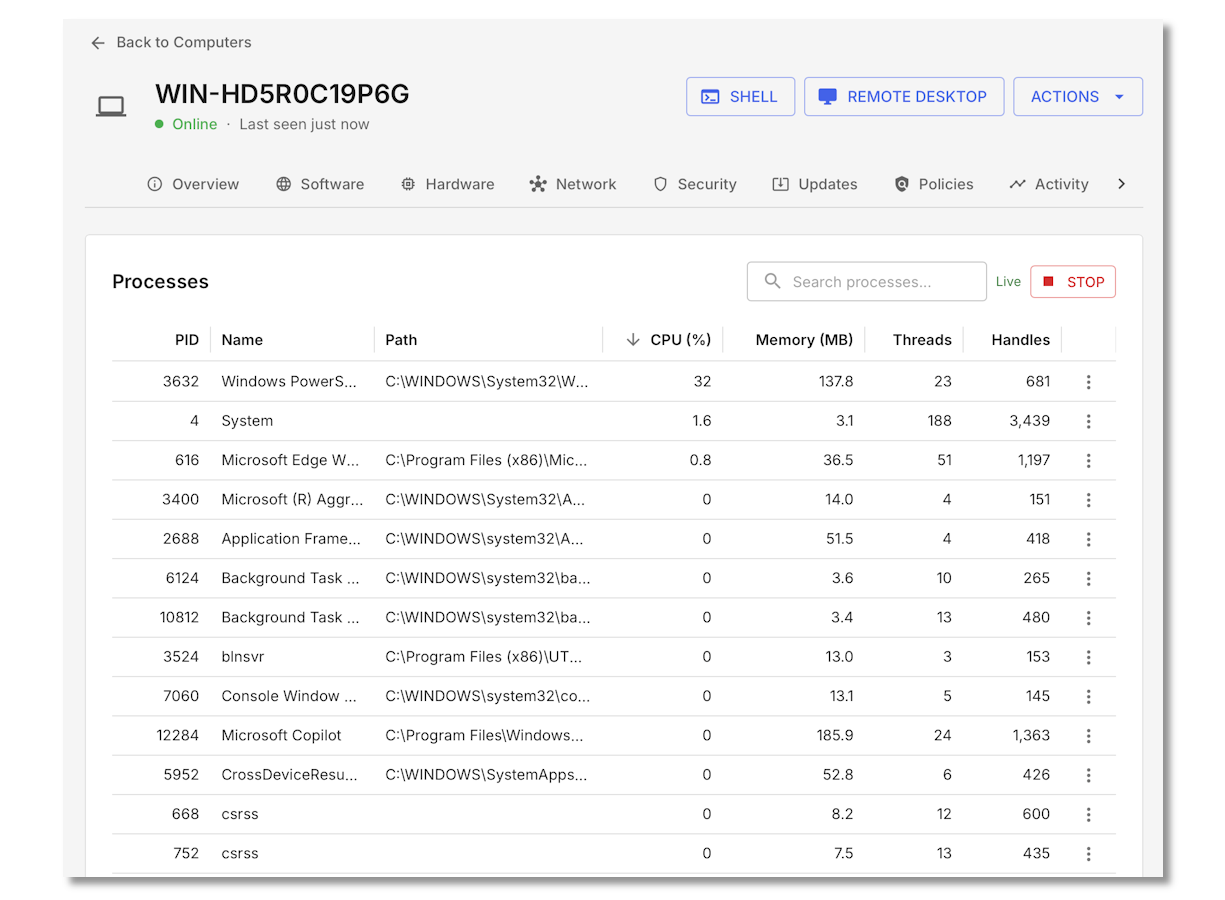
Accessing computer process manager
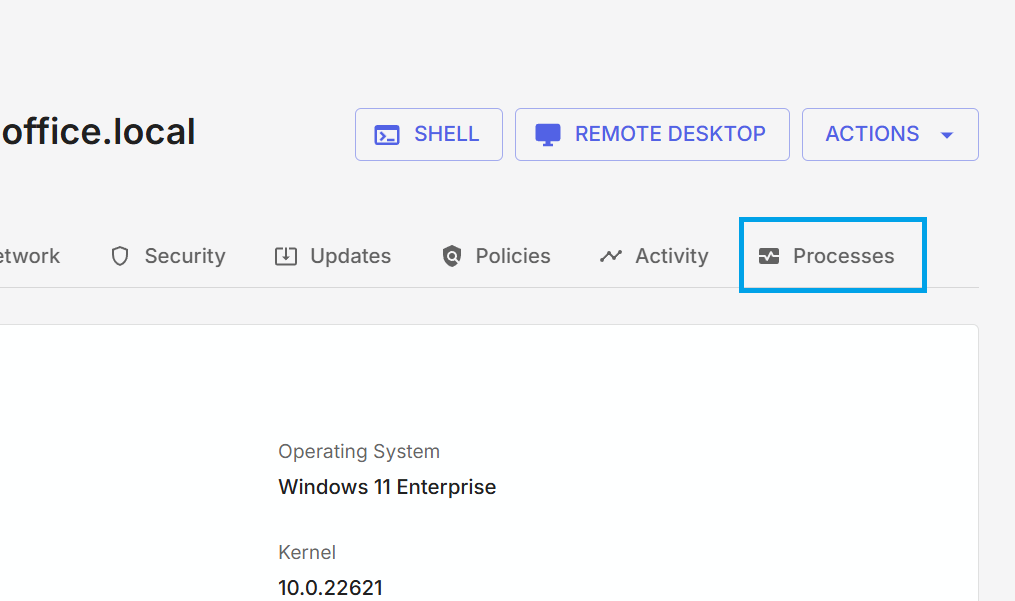
The process manager can be accessed by opening a computer in Remmy, and clicking on the Processes tab. The Processes page shows all currently running processes, including the name, the path, memory consumption, and more.
Users can use the search bar to filter the list of processes for specific processes.
Ending a process
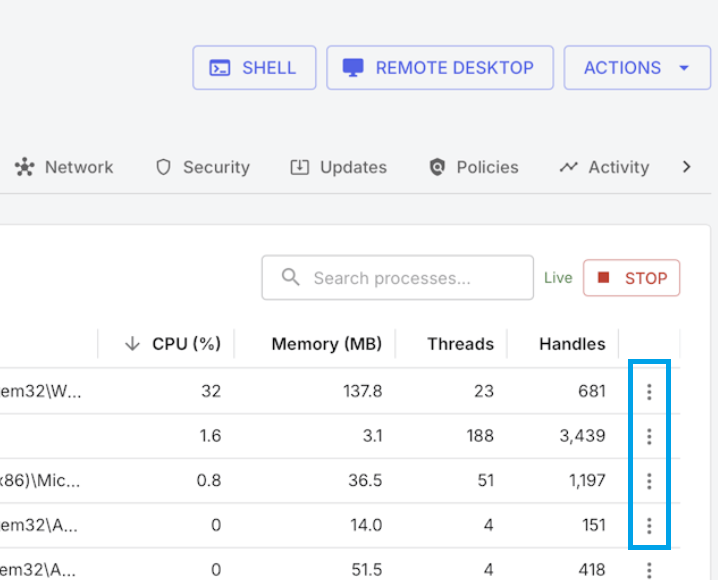
Users can end a process by clicking the three-dot menu in the Actions column on a process, and then select End Task. This immediately force-kills the process on the remote computer.
Update frequency
The process list is refreshed every 10 seconds to conserve bandwidth and reduce system load on the target computer.