
Remote Desktop
Remote Desktop
Updated March 12, 2026
Overview
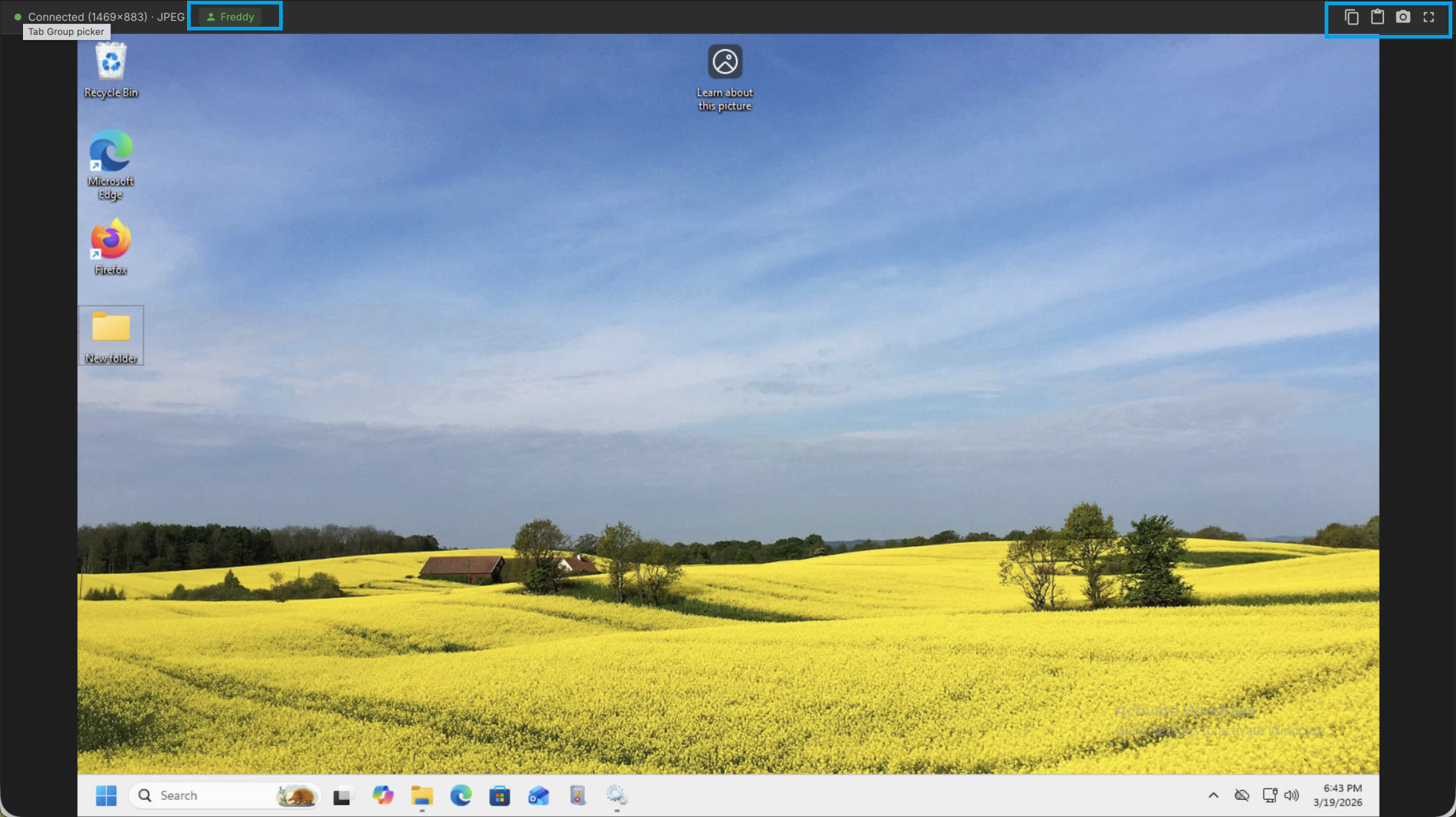
Remote Desktop lets you view and control a managed computer's screen directly from your browser. No VPN, port forwarding, or third-party remote access software required - the connection runs through the agent's existing communication channel. Remote desktop supports attended and unattended sessions, making it easy to keep users notified about remote connections or remote in unnoticed.
Session Types
Remmy supports two different session types:
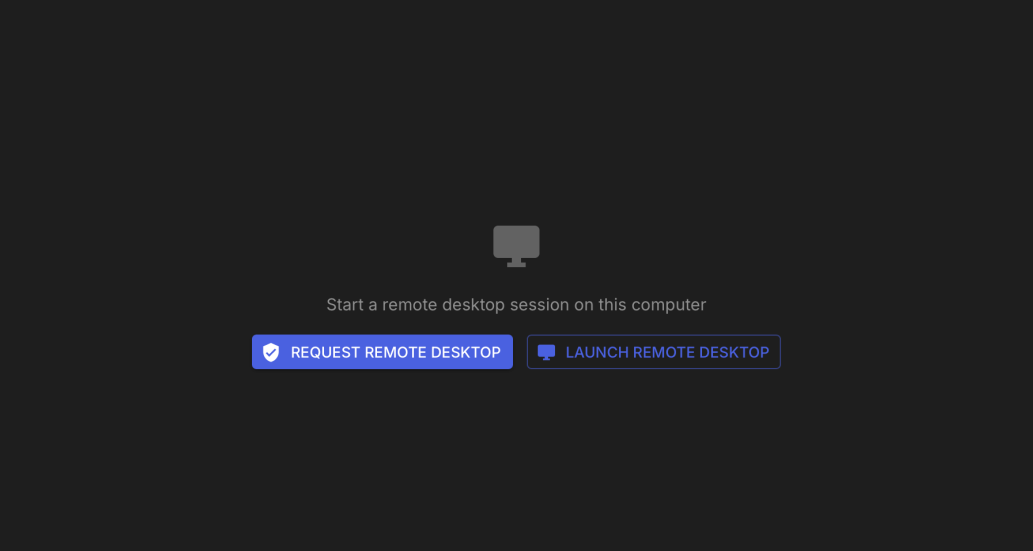
- Direct Access - Connects immediately with no prompt to the remote computer. This is useful for unattended machines or when the end user doesn't need to be aware of the connection.
- Consent Required - Shows a dialog on the remote computer asking the user to approve the session. The user has 60 seconds to accept or decline. If they decline or do not respond, the session is denied.
Administrators can determine which methods users are allowed to use to initiate remote desktop.
Starting a Session
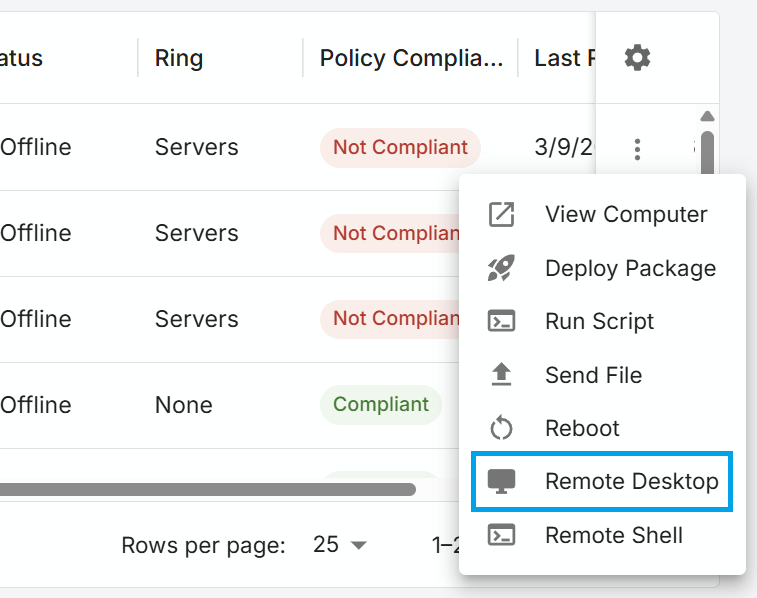
Users can launch a remote desktop session in two ways:
- From the computer list: Click the action dots and select Remote Desktop.
- From a device page: Open the computer's details and click the Remote Desktop button in the top-right corner.
A new browser window will open with the remote desktop interface. Once connected, users have full mouse and keyboard control on the target computer.
Ending a Session
Sessions can be ended by closing the remote desktop window.
Requirements
- The target computer must be online
- A user needs either the "Remote Desktop: Approval Required" permission or the "Remote Desktop: No Approval Required" permission.